
Documentation / Access and permissions
Access and permissions
Decide who can see and use each agent, with roles, groups and per-agent permissions.
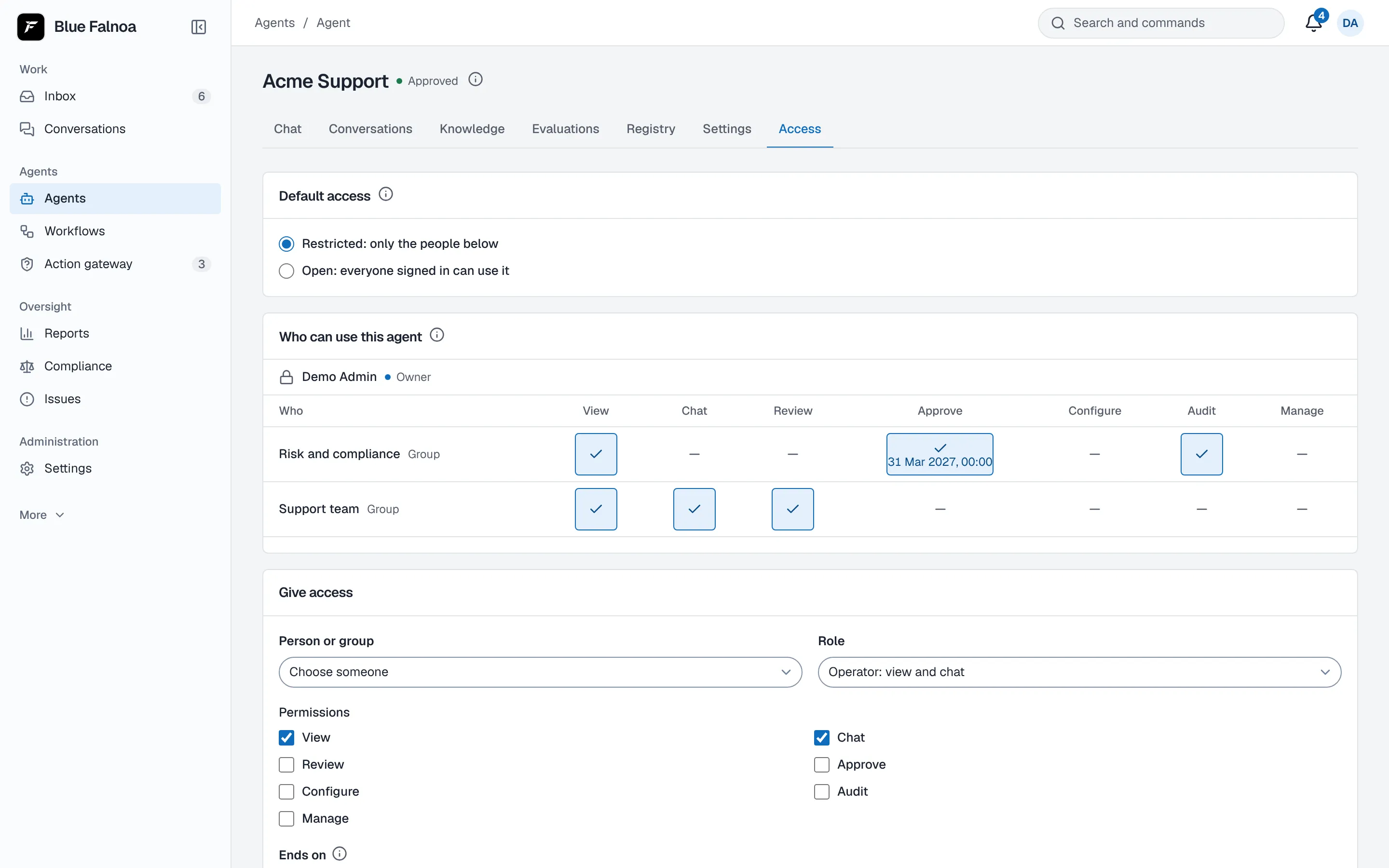
Blue Falnoa starts closed. A person sees an agent only after an administrator, or the agent's owner, has given them access to it. Nobody gets more than their role allows, and every change is written to the audit log.
Closed by default
- A new agent can be seen only by administrators and its owner until someone is given access. Agents that already exist are restricted in the same way.
- Administrators can always open every agent. When they open one they have no grant on, the audit log records it.
- A person with no access to an agent does not see it in the app.
- To make new agents open to everyone signed in, turn on New agents start open in Settings, General. It applies to agents created from then on. Open agents let operators chat, review and approve, and viewers read, but nobody configures an open agent or changes its access without a grant.
Roles are the ceiling
Every person has one role for the whole workspace: Admin, Operator or Viewer. The role is the most that person can ever do, whatever an agent grants. A viewer who is given Approve on an agent still can only read it.
Permissions on one agent
On top of the role, each agent has its own permissions. Each one includes View, so a person who can do anything with an agent can also see it.
| Permission | Lets a person |
|---|---|
| View | See the agent, its conversations and its runs. |
| Chat | Send messages to the agent. |
| Review | Mark answers correct or incorrect. |
| Approve | Approve or reject workflow steps and agent actions. |
| Configure | Change settings, knowledge and tools. |
| Audit | Read the audit trail of this agent. |
| Manage | Change who has access. It includes Configure, but not Chat, Review or Approve. |
Approve does not include Configure. Keep the people who approve actions apart from the people who change an agent's settings, so nobody signs off their own change. The owner of an agent can always manage it.
Give access to an agent
- Open the agent and choose the Access tab. You need the Manage permission, or be an administrator.
- Under Default access, choose Restricted (only the people listed) or Open (everyone signed in, within their role).
- Under Give access, choose a person or a group.
- Pick a ready-made role (Operator, Reviewer, Approver or Owner) or tick the permissions one by one.
- Optionally set Ends on. Access stops at the end of that day. Giving access again with a new date changes the date.
- Choose Give access.
The table lists everyone who has been given access, one column per permission. Click a ticked box to take that permission away, or an empty one to give it. An expired grant stays visible and is marked Expired, but gives nothing.
Groups
A group is a team you can give access to in one go, so you do not repeat the same grants for each person. Groups are managed in Users, under More in the Administration group, below the list of people.
- Open Users and, under Groups, choose New group.
- Give it a name and choose its members.
- Save. The group now appears next to people in the Give access list of every agent.
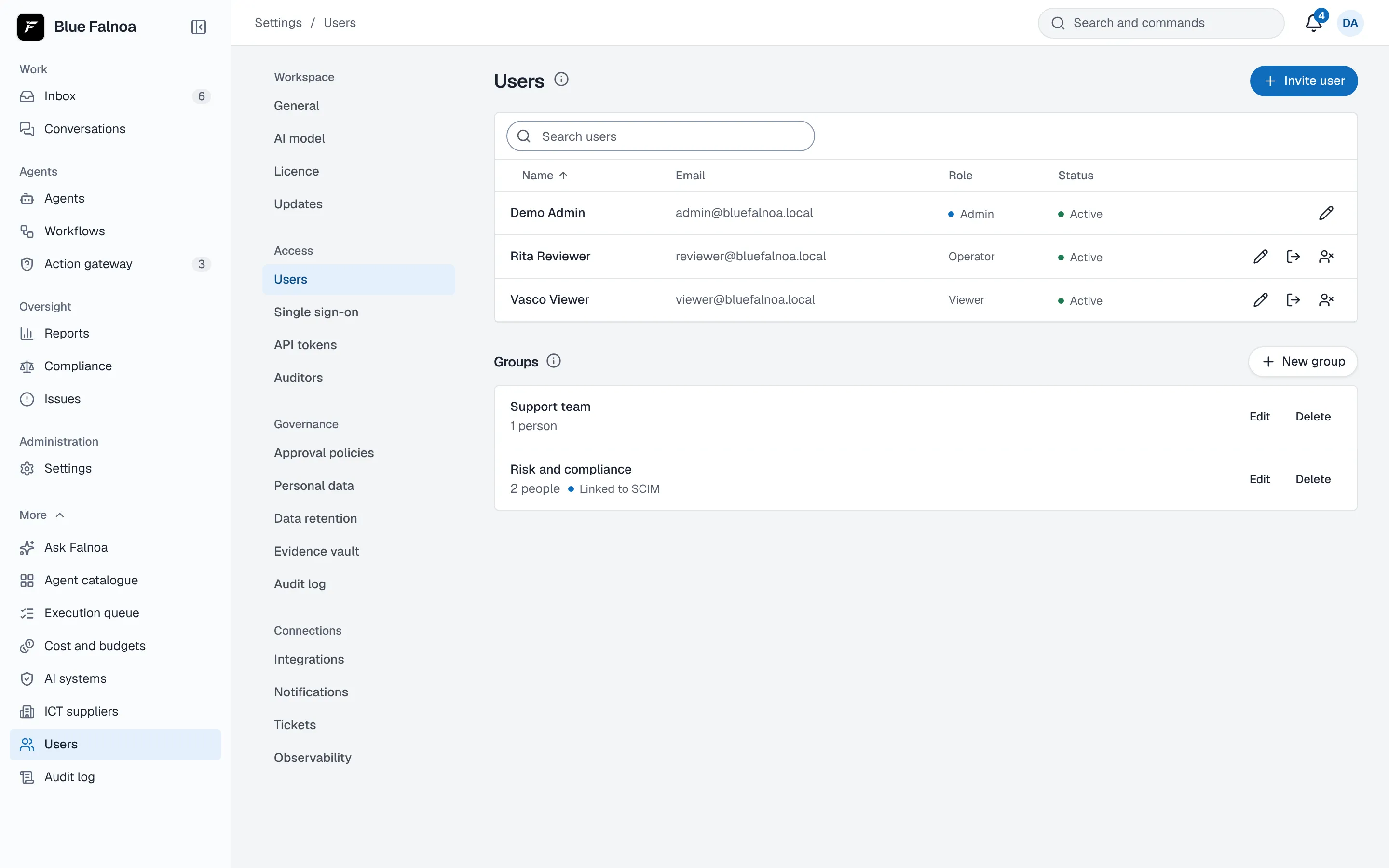
A person gets the permissions given to them directly plus those given to every group they belong to. Deleting a group removes the access given to it. People keep any access they were given directly.
Groups from your identity provider
A Blue Falnoa group can follow a group at your identity provider, so access changes when people change team there. Fill in the field for the identity provider group when you create or edit the group, using the group's name or id. The group then shows Linked. There is nothing to copy by hand.
- Through single sign-on: the groups the provider reports when a person signs in are matched to your linked groups. Membership is refreshed at every sign-in, so a person who has left the provider group loses the access it gave them the next time they sign in.
- Through provisioning (SCIM): if your provider pushes users and groups to Blue Falnoa, the members of the provider's group belong to the linked group, and changes at the provider apply as they are pushed.
Turn SCIM on in Settings, Single sign-on, SCIM provisioning. It only handles accounts that sign in with single sign-on. Local accounts, including the break-glass administrator, are never touched by it.
Single sign-on and roles
With single sign-on, a person's role comes from their groups in the identity provider, and it is worked out again at every sign-in. In Settings, Single sign-on, you map each provider group to Admin, Operator or Viewer, and choose a default role for people whose groups match nothing. A person with several matching groups gets the most privileged role. Roles alone do not open any agent: give agent access to the person, or to a group, which can itself follow a provider group as described above.
Everything is recorded
Granting or removing access, changing an agent's default access, creating or deleting a group, and an administrator opening an agent they have no grant on all appear in the Audit log with who did it and when.
If someone cannot open an agent, they see a message that it does not exist or that they have not been given access. Ask an administrator, or the agent's owner, for access.